On this page
- Why you cannot verify a certificate by looking at it
- The four checks behind real certificate verification
- How QR codes help you verify a certificate
- Warning signs of a fake certificate
- How to verify a certificate step by step
- What a good result looks like when you verify a certificate
- Common mistakes people make
- Frequently asked questions
Short answer: To verify a certificate is real, check it against the issuer’s own record, not its appearance: scan its QR code or type its credential ID on the issuer’s verification page and confirm four things – the record exists, it is unaltered, the issuer has not withdrawn it and it is still in date.
Anyone with a laptop can produce a convincing certificate in ten minutes. Logos, signatures and seals copy perfectly, and a PDF looks just as official whether it came from a university or from a template site. That is why the only reliable way to verify a certificate is to check it against the issuer’s own record – not to judge how it looks.
Key takeaways
- A certificate is only as trustworthy as the record behind it.
- Good verification runs four separate checks, not one.
- A QR code that links to the issuer’s own domain is the fastest way to check.
- Withdrawn and expired credentials should still verify – as withdrawn or expired.
Why you cannot verify a certificate by looking at it
Employers, auditors and clients usually see a certificate as an email attachment or a printout. However, neither carries any proof. Anyone can copy fonts, crests and signatures, and editing a name or a date in a PDF takes seconds. The visual details people rely on – embossing, paper quality, a handwritten signature – simply do not exist in a digital copy.
Therefore, the fix is to separate the document from the record. Anyone can copy the document; however, the record lives with the issuer, and the holder cannot change it.
The four checks behind real certificate verification
A trustworthy verification page answers four questions, and reports each one separately so the verifier understands exactly what the check confirmed:
- Does the record exist? The credential ID must match a record in the issuer’s register.
- Is it unaltered? A signature over the record’s key details shows whether anyone changed anything outside the issuing system.
- Has it been withdrawn? If the issuer withdrew it, the page should say so, ideally with the reason.
- Is it in date? Licences and compliance certificates expire; the check should compare today’s date with the validity window.
How QR codes help you verify a certificate
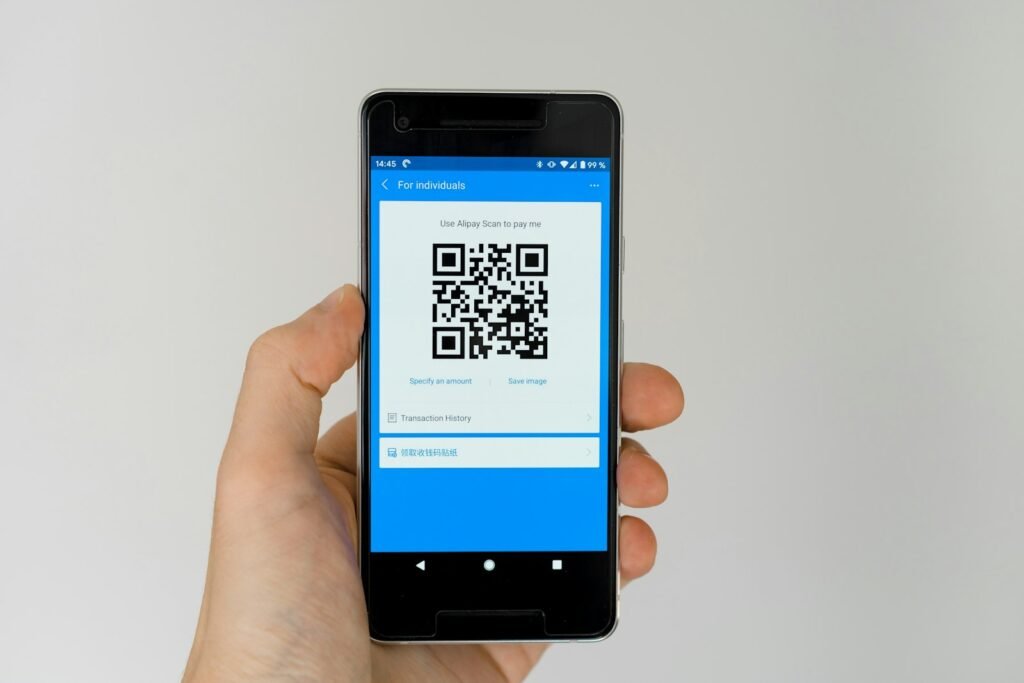
For example, a QR code printed on the certificate turns verification into a single scan. The code should open a page on the issuer’s own website – not a third-party domain – so the verifier can see who is vouching for the record. For anyone who cannot scan, the same check should work by typing the credential ID, or by uploading the certificate file itself.
Warning signs of a fake certificate
- The QR code opens a domain that does not belong to the issuer.
- There is no credential ID, or the issuer’s verification page does not recognise it.
- The name, course or dates on the page do not match the document.
- Also, the issuer only “verifies” by email, days later.
How to verify a certificate step by step
- First, find the credential ID or QR code on the certificate.
- Next, scan the code with your phone camera, or type the ID on the issuer’s verification page.
- Then check the address bar: the page should belong to the issuer, not a look-alike domain.
- After that, compare the name, award and dates on the page with the document in front of you.
- Finally, read the status: valid, expired or withdrawn.
The whole process usually takes less than a minute. Also, if anything does not match, contact the issuer directly using contact details from their official website rather than from the certificate itself.
What a good result looks like when you verify a certificate
A trustworthy result page answers clearly, so you never have to guess. For example, CertiQR shows a green confirmation for a valid credential, together with the holder’s name, the award, the issue date and the expiry date. In contrast, an expired or withdrawn credential appears in a different colour, with the dates or the reason.
- Valid: the record exists, matches the signature and is in date.
- Expired: the record is genuine, but the validity period has ended.
- Withdrawn: the issuer revoked it, usually with a short public reason.
- Not found: the ID does not exist in the register, which is a strong warning sign.
Common mistakes people make
Many people still judge a certificate by its looks, because a professional design feels trustworthy. However, a polished layout proves nothing on its own. Similarly, a QR code that opens a page proves nothing unless that page sits on the issuer’s own domain. So always check where the code leads before you trust the answer.
Another mistake is emailing the issuer and waiting for days. Instead, use the verification page first; most issuers that publish one will answer instantly, and you keep a clear record of the check.
In addition, the W3C Verifiable Credentials Data Model is a useful, independent reference if you want to read further.
Frequently asked questions
QCan I verify a certificate without contacting the issuer?
Yes, if the issuer publishes a verification page. Scan the QR code or type the credential ID and the result comes straight from the issuer’s register, with no email or phone call needed.
QWhat should a verifier see when the issuer withdraws a certificate?
The page should still find it, but mark it as withdrawn – ideally with a short public reason. After all, a record that silently disappears is less useful to the person checking it.
QIs a PDF with a digital signature enough?
It helps, but most verifiers never inspect PDF signatures. A visible QR code and an online record are far easier for employers and auditors to use.
Ready to try it?
Give every certificate you issue a QR code and a public record that anyone can check in seconds. Try CertiQR free for 7 days.
Can I verify a certificate from a photo?
Yes, if the issuer’s page accepts uploads. For example, CertiQR reads the QR code from a PDF or a photo and then checks the same live record.
What if the issuer has no verification page?
Then contact the issuer through their official website and ask them to confirm the credential in writing. Also, consider asking them to add online verification.

We build CertiQR, the WordPress plugin for issuing certificates and verifying them with a QR code. We write about credentials, verification and running a certificate programme.