On this page
- How to create a QR code in four steps
- Static vs dynamic QR codes
- QR code size and design tips
- How businesses create a QR code for each document
- Is it safe to scan a QR code?
- Testing your QR code
- Where to use a QR code
- How to create a QR code that looks on-brand
- Error correction explained simply
- How to create a QR code for many items at once
- Common QR code mistakes
- Frequently asked questions
Short answer: To create a QR code, open a QR code generator, paste the link or text you want to share, choose a size and colour, then download the code as PNG or SVG. For documents such as certificates, use a tool that creates a unique code per document, so each one links to its own record.
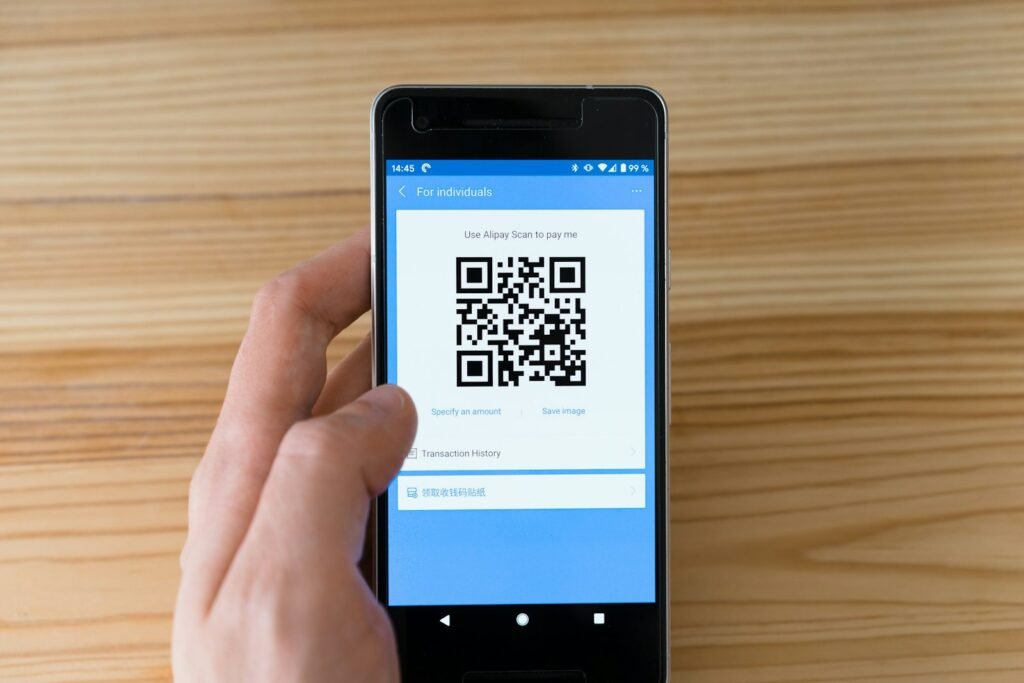
QR codes are everywhere: on menus, posters, parcels and certificates. Fortunately, you do not need any technical skill to make one. This guide explains how to create a QR code, which type to choose and how to make sure it scans first time.
Key takeaways
- A QR code is simply a link or text stored as a square pattern.
- Static codes never change; dynamic codes can be redirected later.
- Contrast and size matter more than colour.
- Always test the code with two different phones before printing.
How to create a QR code in four steps
- First, decide what the code should open, such as a web page.
- Next, paste that address into a QR code generator.
- Then choose the size and error-correction level, and download PNG or SVG.
- Finally, test the code with your phone camera before you print it.
Static vs dynamic QR codes
A static QR code stores the link directly, so it works forever and needs no account. However, you cannot change where it points after printing. A dynamic QR code points to a short link that you can redirect later, but it depends on the provider staying online.
| Static QR code | Dynamic QR code | |
|---|---|---|
| Can change destination | No | Yes |
| Needs an account | No | Usually |
| Works if provider closes | Yes | No |
| Best for | Fixed links, documents | Campaigns, menus |
QR code size and design tips
- Print the code at least 2 cm square; 2.5–3 cm is safer for paper.
- Use dark modules on a light background for strong contrast.
- Keep a clear border (the “quiet zone”) around the code.
- Avoid placing it over photos or gradients.
- Prefer SVG for print, because it stays sharp at any size.
How businesses create a QR code for each document
Sometimes one code is not enough. For example, a training provider needs a different code on every certificate, so each one opens its own record. Creating those by hand would take hours. Instead, a certificate system such as CertiQR creates a QR code for every certificate automatically and links it to a verification page on your own domain.
Is it safe to scan a QR code?
A QR code is only a link, so it is as safe as the page it opens. Therefore, check the address your phone shows before you tap it. For businesses, hosting the destination on your own domain builds trust, because people can see who is behind the link.
Testing your QR code
Always scan the printed code with two different phones, including an older one. In addition, try it in normal room light and at arm’s length. If it struggles, make it larger or increase the contrast.
Where to use a QR code
Once you know how to create a QR code, you will see uses everywhere. For example, restaurants link to menus, shops link to product pages and events link to tickets. Similarly, schools and training providers put a QR code on certificates, so anyone can confirm the certificate is genuine.
- Business cards that open your contact details.
- Posters that open an event page or sign-up form.
- Packaging that opens instructions or a warranty page.
- Certificates that open a verification record.
- Invoices that open a payment page.
How to create a QR code that looks on-brand
You can add colour and even a small logo, as long as contrast stays strong. Keep the modules dark and the background light, and never invert them. In addition, raise the error-correction level to “M” or “Q” if you place a logo in the middle, because the logo hides part of the pattern. Then test again, since every change affects scanning.
Error correction explained simply
QR codes contain extra data that lets phones read them even when part of the code is damaged. There are four levels: L, M, Q and H. Higher levels survive more damage but make the code denser. For most printed documents, level M is a good balance between reliability and size.
| Level | Recovers about | Good for |
|---|---|---|
| L | 7% | Screens, clean prints |
| M | 15% | Most printed documents |
| Q | 25% | Codes with a small logo |
| H | 30% | Harsh conditions |
How to create a QR code for many items at once
Making codes one at a time works for a poster. However, it does not work for 500 certificates or 1,000 products. In that case, use a system that generates codes in bulk from a spreadsheet. For certificates, CertiQR creates a unique QR code for each holder automatically, so you never handle the codes yourself.
Common QR code mistakes
The most common mistake is printing too small. Another is linking to a page that later disappears, which breaks every printed copy. Finally, some people place codes on curved or shiny surfaces that reflect light. So check size, permanence and placement before you print in quantity.
In addition, the W3C Verifiable Credentials Data Model is a useful, independent reference if you want to read further.
Frequently asked questions
QCan I create a QR code for free?
Yes. Many generators are free, and static QR codes never expire.
QDo QR codes expire?
Static codes do not. Dynamic codes stop working if the provider’s service ends or your plan lapses.
QWhat is the best format for printing a QR code?
SVG, because it scales without losing sharpness. Use PNG at high resolution if SVG is not an option.
QHow do I create a QR code for every certificate?
Use a certificate system that generates a unique code per certificate automatically, such as CertiQR.
Ready to try it?
Issue certificates with QR verification on your own WordPress site. Try CertiQR free for 7 days.

We build CertiQR, the WordPress plugin for issuing certificates and verifying them with a QR code. We write about credentials, verification and running a certificate programme.