
On this page
- 1. Install the plugin that adds QR codes to certificates
- 2. Set up a category
- 3. Design a template with QR codes on certificates
- 4. Issue a credential
- 5. Test the scan
- What you need before you add QR codes to certificates
- Choosing an ID pattern
- Where QR codes on certificates work best
- Going live with QR codes on certificates
- Frequently asked questions
Short answer: To add QR codes to certificates in WordPress, install CertiQR, create a verification page, set up a category with an ID pattern, design a template with a QR code element and issue a credential. Each certificate gets its own ID and a QR code that opens its live record.
Adding QR codes to certificates is the quickest way to make them verifiable. That is because each code points to a record on your own website, so anyone holding the certificate can scan it and see straight away whether it is genuine. So here is how to set it up in WordPress with CertiQR.
Key takeaways
- Each certificate gets its own ID and its own QR code.
- The code opens a verification page on your domain.
- You can generate certificates from a template or add the QR code to documents you already have.
1. Install the plugin that adds QR codes to certificates
First, install CertiQR from Plugins → Add New, then open its settings. Choose an existing page for verification results or let CertiQR create one with the [certiqr_verify] shortcode on it. As a result, this is the page every QR code will open.
2. Set up a category
Next, create a category. It describes one kind of credential – a course certificate, an operator licence, an inspection report. Also give it an ID pattern (for example TRN-{YYYY}-{RAND4}), a validity period if it expires, and any custom fields it needs, such as grade or instructor.
3. Design a template with QR codes on certificates
Then upload your certificate artwork as a background and drag the holder’s name, the course, the dates, the credential ID and the QR code into place in the visual editor. CertiQR stores positions proportionally, so the layout holds at any size.
4. Issue a credential
After that, add a person, choose the category and save. CertiQR assigns the ID, draws the certificate with its QR code and can email it to the holder as a PDF. Already have the document – a signed licence or an inspection report? In that case, upload it instead and place the QR code on a copy.
5. Test the scan
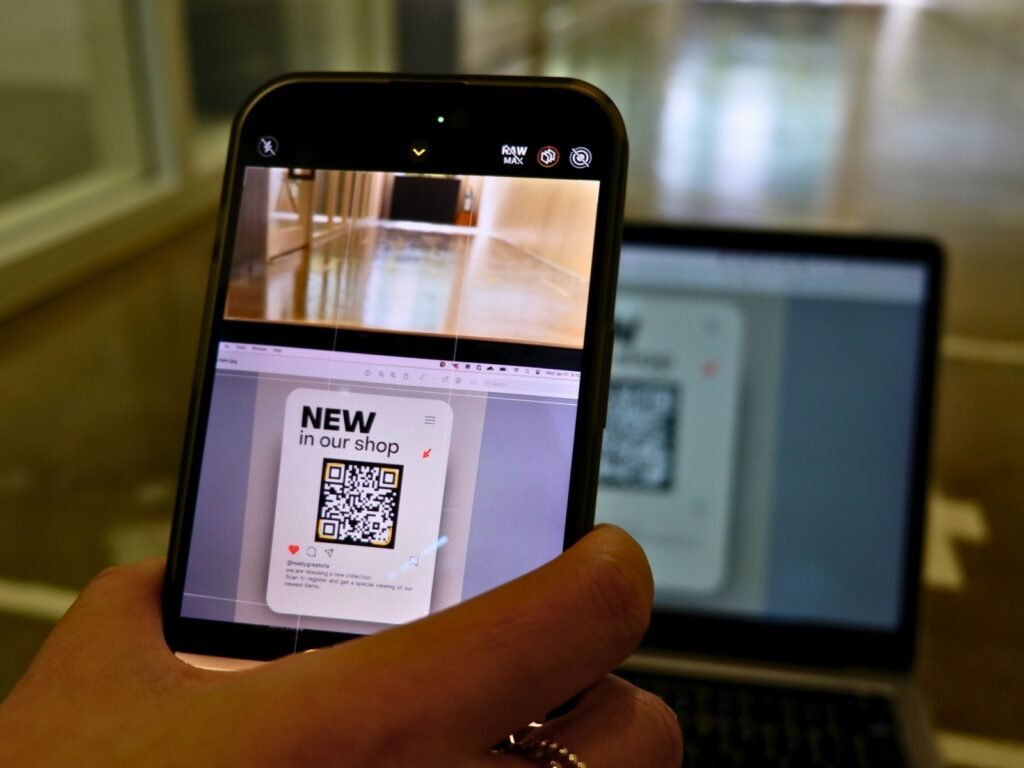
Finally, scan the code with a phone camera. It should open your verification page and show the record as genuine and in date. Also try a wrong ID, so you know what a failed check looks like.
What you need before you add QR codes to certificates
- A WordPress site on any normal hosting, running WordPress 6.4 or newer.
- Your certificate artwork as a high-resolution PNG or JPG, or your finished PDFs.
- A list of holders, either typed in or in a spreadsheet.
- An SMTP plugin if you want CertiQR to email certificates reliably.
Choosing an ID pattern
Every certificate needs a unique, readable ID, because people sometimes type it instead of scanning. For example, a pattern such as TRN-{YYYY}-{RAND4} produces IDs like TRN-2026-4417. Alternatively, a sequential pattern such as SRA-0001 suits awarding bodies that already number their certificates. In both cases, keep IDs short and avoid characters that people confuse, such as O and 0.
Where QR codes on certificates work best
Place the code on a plain, light area of the design, ideally in a bottom corner. Also, print the credential ID right next to it, so anyone without a camera can still check the certificate. As a rule of thumb, aim for a code about 22–30 mm square on paper, which any phone can scan from a normal distance.
Going live with QR codes on certificates
- First, issue one test certificate to yourself.
- Next, scan it with two different phones and check the result page.
- Then email the PDF to yourself to confirm delivery.
- Finally, issue the real certificates, either one by one or as a batch.
After launch, the verification log shows every check, so you can see how often employers and clients actually use the codes.
In addition, the official WordPress documentation is a useful, independent reference if you want to read further.
Frequently asked questions
QDo QR codes on certificates expire?
No, because the code simply links to the record. If the credential expires, the same scan shows it as expired, with its dates.
QCan I add a QR code to a PDF I already have?
Yes. Upload the PDF, JPG or PNG, place the QR code on a clear area of the page and issue it. Similarly, multi-page PDFs can carry the code on every page.
QWill it work with my theme and page builder?
Yes. The verification form is a shortcode, so it works in Elementor, Divi, WPBakery, Beaver Builder and the block editor.
Ready to try it?
Set up QR-coded certificates on your own WordPress site this afternoon. Try every feature free for 7 days.
Do QR codes on certificates still work if I change my theme?
Yes. The code links to your verification page, so it keeps working whatever theme or page builder you use.
Can I change the certificate design after issuing?
Yes. Edit the template and rebuild the certificates; the IDs and QR codes stay the same, so printed copies still work.

We build CertiQR, the WordPress plugin for issuing certificates and verifying them with a QR code. We write about credentials, verification and running a certificate programme.